
DK999 for PC – Play on Windows or Mac Safely
The simplest way to access DK999 on a computer is usually through its verified web version. Open a supported browser, check the complete address and sign in with the same account used on your phone. This route needs no APK installation and avoids the extra memory, storage and security concerns that come with an Android emulator.
If DK999 is available only as an Android app, a third-party emulator may run the APK on Windows or macOS. An emulator is not a native DK999 PC application, and it should be installed only from its own verified publisher.
DK999 PC Options at a Glance
| Access method | Best suited to | Main limitation |
| Browser on Windows | Quick access without installing extra software | Depends on website and browser compatibility |
| Browser on Mac | Safari, Chrome or another supported browser | Some payment redirects or pop-ups may need attention |
| Android emulator | Running a verified Android APK on a compatible computer | Uses more system resources and adds third-party software |
| Native Windows or Mac app | Only if a verified installer is currently provided | Do not assume that an .exe or .dmg found elsewhere is genuine |
Browser access should be tried first. Install an emulator only when the Android app is necessary and the computer can run it comfortably.
Is There a DK999 Game Download for PC?
Check the current DK999 download page for an explicitly supported Windows or macOS installer. Do not convert an Android APK into an .exe, and do not download a file simply because its name contains “DK999 for PC.” Where no verified desktop application exists, there are two practical routes:
- Use the web version in a desktop browser.
- Install a reputable Android emulator, then add the verified DK999 APK inside it.
The second option is still the Android application running in a virtual device. It does not become a Windows or Mac program.
Before Opening DK999 on a Computer
Check the computer and account before logging in:
- Use a personal or trusted device rather than a public computer
- Install operating-system and browser updates
- Confirm that antivirus or built-in security protection is active
- Check the complete DK999 web address
- Remember the original account identifier and password
- Keep the registered phone nearby for OTP verification
- Use stable internet
- Close remote-access tools you do not need
- Avoid saving credentials on a shared Windows or Mac profile
If the computer belongs to work, school or another organization, do not install an emulator or bypass device restrictions without permission.
Option 1: Use DK999 in a PC Browser
This method is faster, lighter and easier to troubleshoot than emulation.
Step 1: Open an Updated Browser
Use a current version of Chrome, Edge, Firefox, Safari or another browser supported by the website. Outdated browsers can produce blank pages, broken buttons or repeated login loops.
Step 2: Enter the Verified Address
Type the address directly or use a trusted bookmark. Search advertisements and copied domains can look convincing on a large screen. Inspect spelling and the domain ending before entering credentials.
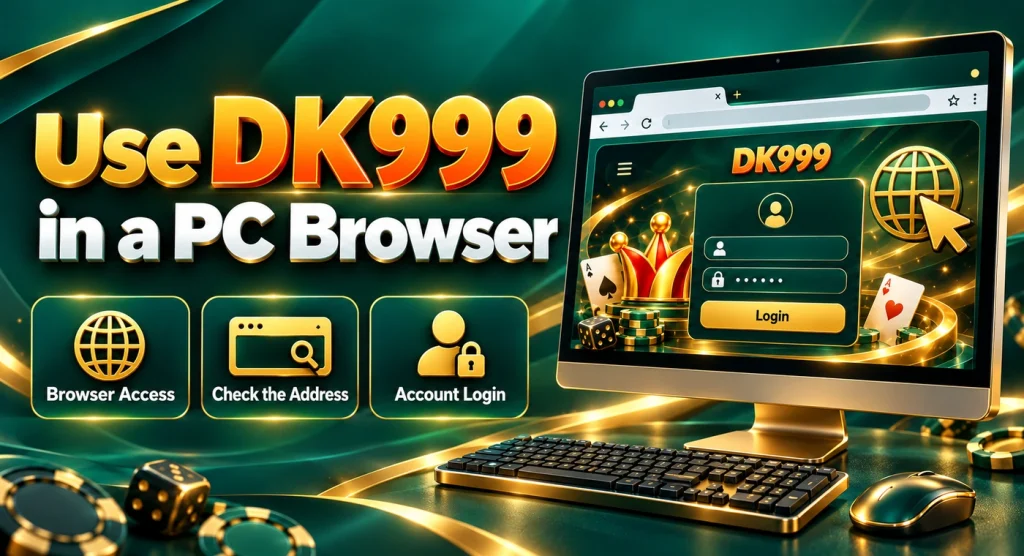
Step 3: Select Login
Use the existing phone number, username, email or sign-in method associated with the account. Follow the DK999 login instructions if the password or session is not accepted.
Step 4: Complete Any OTP Check
Keep the registered phone nearby. Enter only the newest code and never share it with a support contact. A PC login can trigger additional verification because the browser is a new device.
Step 5: Check the Account Before Playing
Confirm the username, balance and recent transaction history. A blank profile often means a different login method was used, not that the original account disappeared.
Create a DK999 Desktop Shortcut
- A verified browser page can be saved for quicker access without installing a separate desktop program.
- In Chrome or Edge, open the browser menu and look for Create shortcut, Install this site as an app or similar wording. The option varies by browser version. On a Mac, a normal Safari bookmark or Dock web app may be available depending on macOS.
- Review the address before creating the shortcut. A desktop icon hides much of the URL, so a shortcut made from a fake page can continue leading there.
- The shortcut remains a web link. It does not prove that DK999 has a native Windows or macOS app.
Option 2: Run the DK999 Android APK in an Emulator
Use this route only when the browser version is unavailable or a mobile-app feature is needed. The emulator comes from a separate company and has its own privacy, advertising and system requirements.
Step 1: Choose a Reputable Emulator
Download it from the emulator publisher’s verified website. Avoid modified, cracked or “light” builds from file-sharing sites. Review its compatibility with your Windows or macOS version and processor.
Step 2: Install and Open the Emulator
Follow the publisher’s setup process. A restart or virtualization support may be required. Do not disable antivirus protection simply because an unknown installer demands it.
Step 3: Download the Verified DK999 APK
Open the DK999 download page from the computer or within the emulator. Save the current Android package. Do not use a mod APK, hack, predictor or renamed archive.
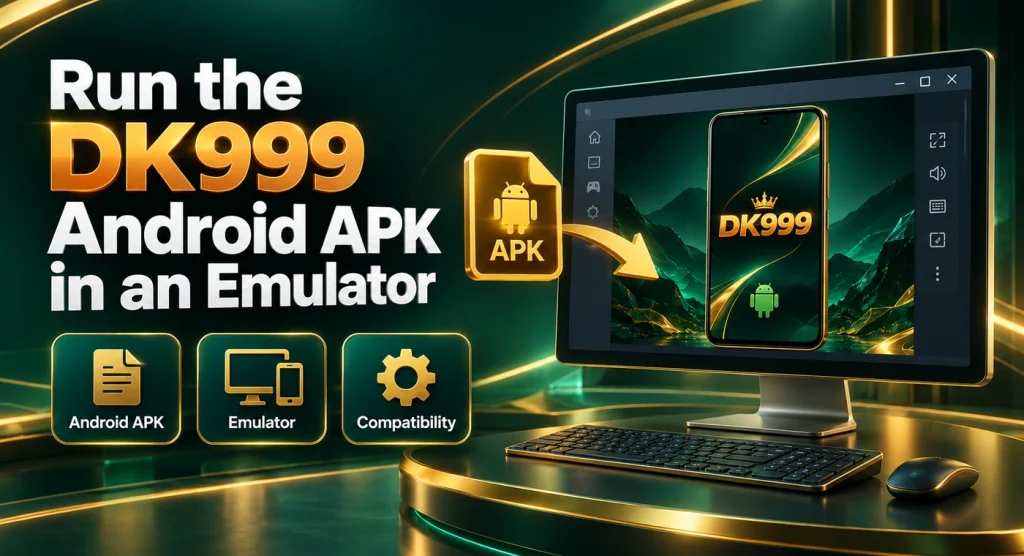
Step 4: Add the APK to the Emulator
Use the emulator’s Install APK control or drag the file into its main window if that feature is supported. Wait for installation to finish and check the app icon.
Step 5: Sign In to the Existing Account
Open DK999 and use the original credentials. An emulator behaves like a new Android device, so an OTP or security check may appear.
Step 6: Review Permissions and Performance
Allow only permissions required for the feature being used. If the computer slows down, lower the emulator resolution or allocated resources according to its documentation.
PC System Requirements
Requirements depend on the access route. Browser use is usually lighter, while an emulator needs additional RAM, processor capacity, graphics support and storage. For browser access, the computer should have:
- A supported Windows or macOS version
- An updated browser
- JavaScript and essential cookies enabled
- Stable internet
- Correct date and time
- Enough free memory to keep the page responsive
For emulator access, check the live requirements published by the selected emulator. Processor type, virtualization support and graphics drivers matter. A fixed RAM or CPU claim should not be copied between emulators because their requirements differ. Low-end computers may run the web version well but struggle with an emulator. Start with the browser before adding more software.
Windows PC vs Mac
The DK999 web route is broadly similar on both platforms, but emulator support can differ.
| Windows | Mac |
| Chrome and Edge are common browser choices | Safari and Chrome are common browser choices |
| Many Android emulators target Windows first | Emulator availability depends on macOS and chip type |
| Virtualization may be controlled through Windows features or BIOS/UEFI | Apple silicon and Intel Macs require compatible builds |
| Windows Security checks downloaded installers | Gatekeeper checks downloaded Mac applications |
Do not force a Windows emulator onto macOS or install an Intel-only build without checking compatibility. For either platform, the browser is the safer fallback when the emulator does not support the hardware.
DK999 Browser Page Not Loading on PC
Test another normal website first. If the connection works, try these checks in order:
- Reload the verified DK999 page once.
- Open it in a private or incognito window.
- Clear site data for that domain rather than deleting all browser history.
- Disable an aggressive ad blocker for one test.
- Allow essential JavaScript and cookies.
- Switch browsers.
- Turn off a VPN temporarily if it is causing routing problems.
- Restart the router and computer if other sites are also failing.
A browser certificate or deceptive-site warning should not be ignored. Recheck the address instead of clicking through it.
Login Works on Phone but Not on PC
Use the same account identifier and sign-in method. Browser autofill may insert a saved password from a similar domain, so type it manually for one attempt. The platform may request an OTP because the PC is a new device. Confirm that the registered phone has signal and use the newest code. If login loops back to the same page, test a private window and allow essential cookies. Do not register another account. Successful phone access proves that the original profile still exists. Review DK999 login problems if the computer continues rejecting the credentials.
The PC Browser Keeps Logging Out
Sessions rely on cookies. Private browsing, automatic history clearing, strict tracking protection or a security extension can remove them when the tab closes. Allow essential site cookies for the verified domain and avoid switching rapidly between networks. Check that the computer clock is set automatically; an incorrect date can invalidate secure sessions. On a shared computer, repeated login prompts are preferable to leaving the account exposed. Do not weaken browser privacy or save the password merely for convenience.
Emulator Will Not Install
The usual causes are an unsupported operating system, insufficient storage, missing virtualization support, blocked administrator permissions or an incompatible processor. Read the installer’s exact message and compare it with the publisher’s current requirements. Update graphics drivers and the operating system where appropriate. Do not download a patched installer to bypass compatibility checks. If the computer is too old for the emulator, use the browser. Adding more virtual memory may not solve a processor or graphics incompatibility.
DK999 APK Will Not Install in the Emulator
First, confirm the APK finished downloading and came from the intended page. Then check whether the emulator’s Android version supports the current package. Possible causes include:
- Incomplete or corrupted APK
- Unsupported Android version
- Package-signature conflict with an installed copy
- Insufficient emulator storage
- Incompatible processor architecture
- Modified or renamed APK
Delete only the failed installer and obtain a fresh verified copy. Before removing an installed DK999 version, confirm the login details and record any pending transaction references.
Emulator Shows a Black or Frozen Screen
Restart the app and emulator. If the issue repeats, update the emulator and graphics drivers, change its graphics-rendering mode according to publisher guidance and lower the resolution. Close memory-heavy programs while testing. An emulator can freeze when the computer is nearly out of RAM even though the DK999 app itself is small. If the browser version works on the same computer, use it while the emulator issue is unresolved. This separates an account or service problem from a local virtualization problem.
DK999 Is Slow on a Laptop
For browser use, close unused tabs, disable unnecessary extensions and avoid high browser zoom. A weak Wi-Fi signal can feel like low computer performance. For emulator use, close large applications, use a lower virtual-screen resolution and allocate resources within the emulator’s recommended range. Giving the emulator every available processor core or too much RAM can slow the rest of the system. Keep adequate free storage. Both Windows and macOS perform poorly when the main drive is almost full.
Keyboard and Mouse Controls
The browser version should respond to normal mouse clicks and text input. An Android emulator converts keyboard and mouse actions into touch controls. Some emulators allow custom key mapping, but those controls belong to the emulator, not DK999. Avoid scripts, auto-clickers, bots or modified tools. They can violate platform rules, create unintended bets and expose account credentials. Use the standard interface and confirm amounts before clicking payment or game controls.
On a touch-enabled Windows laptop, browser scaling can sometimes cause duplicate taps. Submit financial forms once and verify the transaction record before trying again.
Full-Screen and Display Problems
If buttons are cut off, reset browser zoom to 100%, exit full-screen mode and reload. On Windows, very high display scaling can affect some pages. On macOS, browser zoom and system display scaling can have a similar effect. Inside an emulator, rotate the virtual device or change its resolution. Restart after making a graphics change. Do not click hidden or partially loaded controls on deposit and withdrawal screens.
Sound Not Working on PC
Check the browser tab mute icon, Windows volume mixer or macOS sound output. Bluetooth headphones may connect while the sound remains assigned to another device. Browsers can block autoplay audio until the page is clicked. Emulators have their own volume setting in addition to the computer volume. Keep sound at a comfortable level and avoid using game audio as a signal that a financial action has completed. Check the visible transaction status instead.
Deposits and Withdrawals on PC
Start every payment request inside the verified account. A desktop browser makes it easier to compare details, but copy-and-paste mistakes still happen. Check the amount, recipient and transaction reference character by character. If a QR code appears, confirm that it belongs to the current request before scanning it with a phone. Do not reuse a QR image or receiving account saved from an older session.
Follow the DK999 deposit instructions for pending or missing balances. The DK999 withdrawal page explains payment-detail matching, rejected requests and completed payouts that have not reached the wallet or bank. Never let a remote support contact control the PC during a payment. Screen-sharing software can expose passwords, OTPs and mobile-wallet information.
Account Security on a Windows PC or Mac
Computers are often shared, repaired remotely or left signed in. Take a few precautions:
- Use a separate password that is not reused for email or banking
- Keep the operating system and browser updated
- Leave antivirus and built-in security protections enabled
- Do not save credentials on a public or shared profile
- Log out after each session on another person’s device
- Clear only the DK999 site data when needed
- Review downloaded .exe, .dmg and APK files before opening
- Avoid remote-access requests from unknown support agents
- Remove unfamiliar browser extensions
- Lock the computer when stepping away
If a page offers a “DK999 hack,” predictor, mod menu or guaranteed win tool, leave it. Such downloads can steal browser sessions and payment details. Review the DK999 website safety checklist before using an unfamiliar address.
Browser or Emulator: Which Is Better?
For most users, the browser is the sensible first choice. It launches quickly, requires less storage and keeps the computer free of an extra virtual operating system. An emulator can make sense when a verified Android app provides a feature unavailable on the web version. The tradeoff is higher resource use, another company’s software and more troubleshooting points. Do not install an emulator solely because a page calls it mandatory. Test the verified website first.
Responsible Use on a Larger Screen
A PC can make sessions feel less limited than phone use. Set an end time before logging in and keep deposit decisions separate from recent results. Do not open several game windows or increase stakes to recover a loss. Turn off promotional notifications when they encourage unplanned play. Use available deposit limits, cooling-off controls or self-exclusion tools. More practical advice is available on the responsible gaming page.
DK999 for PC FAQs
Open DK999 on PC Without Unnecessary Software
Start with the verified browser version on Windows or Mac. Add an emulator only when the Android app is genuinely needed, then obtain both the emulator and DK999 APK from their intended sources.
Disclaimer: This page provides general Windows, macOS, browser and emulator information. Desktop availability, compatibility, app features and third-party emulator requirements may change. Users must be 18 or older and comply with local laws. No software, bonus, game result or financial return is guaranteed.