
DK999 Deposit – Add Money & Fix Payment Problems
A DK999 deposit should begin inside your logged-in account, not from a payment number copied from an old screenshot or social-media message. Open the cashier, choose a method currently shown there, read the amount limits and use the payment details generated for that transaction. The important part comes after sending the money: save the transaction ID, return to the deposit screen and complete any confirmation fields. Many missing-balance complaints happen because the payment was sent but the deposit request was never submitted.
18+ notice: DK999 may include real-money gaming or betting. Deposit only where such activity is permitted. Set a firm spending limit, never borrow money to play and do not expect a deposit or bonus to produce profit.
What to Check Before Making a DK999 Deposit
Do not rush from the wallet screen to the payment app. A one-minute check can prevent a much longer payment dispute. Make sure that:
- You are logged in to the correct DK999 account
- The cashier page was opened from the current app or verified website
- The selected payment method is available on your screen
- Your amount is within the displayed minimum and maximum limits
- The recipient details were generated for the current request
- Your mobile wallet or bank account has enough balance for the payment and any provider charge
- The payer name or number meets any account-matching requirement shown
- You understand the bonus choice, if one is attached to the deposit
- You can save the payment receipt and transaction reference
Limits, receiving accounts and processing instructions can change. Treat the figures and details inside the live cashier as the current information. An amount mentioned in an old article, video or screenshot may no longer be accepted.
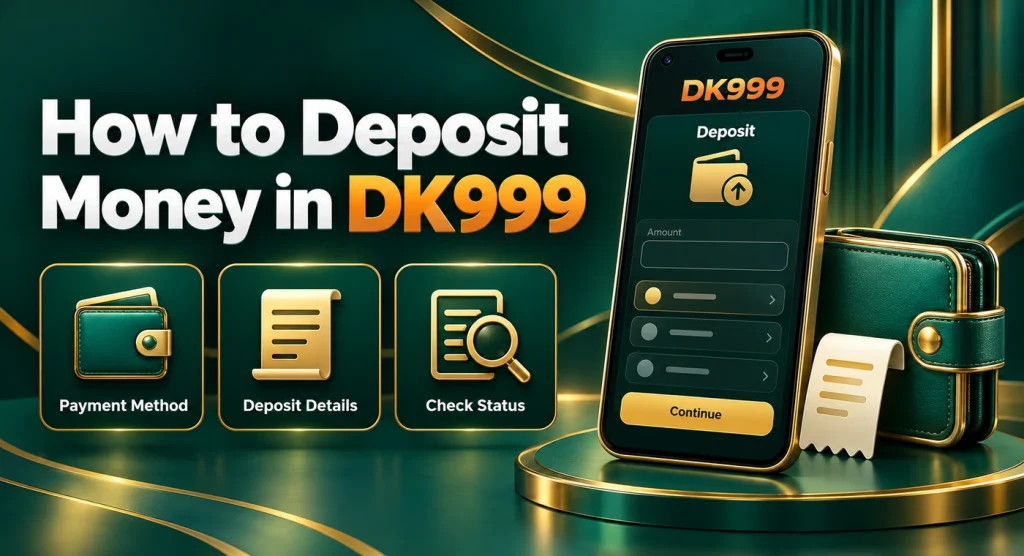
How to Deposit Money in DK999
The screen labels can vary by version, but the normal deposit flow follows the same basic pattern.
Step 1: Log In to Your Existing Account
Open DK999 and sign in with the account that should receive the funds. Check the displayed username, phone-number ending or user ID. A payment made while the wrong profile is open may be difficult to trace. If you cannot access the account, solve the problem through the DK999 login page before making a payment.
Step 2: Open Deposit or Add Money
Go to the wallet, cashier or account section and select Deposit, Recharge or Add Money. Do not begin by transferring funds directly from JazzCash, Easypaisa or a banking app without first creating the request inside DK999.
Step 3: Choose a Payment Method
Select one of the options currently listed in your cashier. The method may determine the minimum amount, processing steps and required reference information. If a familiar option is missing, do not send money to an account used for a previous deposit.
Step 4: Enter the Deposit Amount
Type the exact amount you intend to send. Check the minimum and maximum displayed for the selected channel. Avoid adding commas, decimals or extra zeros unless the form accepts them.
If you enter PKR 1,000 in DK999 but transfer PKR 100 or PKR 10,000, automatic matching may fail. The requested amount and the sent amount should match.
Step 5: Read the Payment Instructions
The screen may show a receiving number, account title, QR code, bank details or a redirect to a payment provider. Compare every digit before sending. Receiving information can rotate, so never assume yesterday’s account is still valid.
Step 6: Send the Exact Amount
Open the selected wallet or bank app and complete the transfer. Check the recipient information again on the final confirmation screen. Do not put your DK999 password or OTP in a payment note.
Step 7: Save the Transaction ID
Take a clear screenshot of the successful payment page. The most useful evidence includes:
- Amount
- Date and time
- Sender number or masked account
- Recipient details
- Transaction ID, reference number or receipt number
- Payment status
A cropped image showing only “successful” is less useful than the complete receipt.
Step 8: Return to DK999 and Confirm the Deposit
Go back to the open deposit request. Enter the transaction ID or upload the receipt if the form asks for it. Some methods require a Submit, Paid or Confirm button after the transfer. Leaving the page before this step can prevent automatic matching.
Step 9: Check the Wallet and Deposit Record
Allow the displayed processing period to pass, then refresh the wallet once. Open the transaction or deposit history to see whether the request is pending, successful, rejected or absent. Do not immediately make the same payment again.
Payment Methods That May Appear
Pakistani users commonly look for JazzCash and Easypaisa, while some cashier versions may show bank transfer, QR payment or another local option. Availability is not permanent and can differ between accounts. Use a method only when it appears inside your current DK999 cashier.
| Possible method | What to verify before paying | Evidence to save |
| JazzCash | Current recipient number, account title, amount and reference instructions | Transaction ID and complete receipt |
| Easypaisa | Current receiving details, transfer amount and any sender-number requirement | Receipt number and timestamp |
| Bank transfer | Bank name, account number or IBAN, title and transfer remarks | Bank reference and confirmation page |
| QR payment | QR generated by the current cashier and the recipient shown after scanning | Payment reference and screenshot |
| Other local channel | Limits, fees, account-matching rule and submission steps | Provider receipt and DK999 request record |
The presence of a payment brand in a blog post does not confirm that it is currently supported. The live deposit page is the deciding source.
DK999 Deposit Through JazzCash
If JazzCash appears as an available method, select it inside the cashier before opening the wallet app. Enter an allowed amount and use only the recipient details shown for that request. After transferring, copy the JazzCash transaction ID exactly. Return to DK999 and complete the confirmation step. Keep the SMS and in-app receipt until the balance has been credited and checked. Do not send a second transfer simply because the wallet balance does not update immediately. First check deposit history. If the request is pending, wait for the stated period. If no request appears, collect the receipt and contact support through the verified platform.
DK999 Deposit Through Easypaisa
When Easypaisa is listed, the process is similar: create the deposit request, check the current receiving details, send the exact amount and save the receipt. Enter the transaction reference or upload proof only where the DK999 form requests it. Watch for an important mismatch: the phone number used to pay may be different from the number registered on DK999. If the cashier states that both must match, use the linked account or follow the support process before sending money. Do not assume a third-party wallet will be accepted.
Minimum and Maximum Deposit Amounts
Use the limits displayed after selecting a payment method. A site-wide figure can be misleading because each channel may have its own range. Limits may also change with maintenance, provider rules or account status. Sending below the minimum can leave a payment unmatched. Sending above the maximum may trigger rejection, manual review or a return through the payment provider. If you want to add a larger amount, do not split it into repeated transfers unless the current rules allow that approach.
There is no good reason to test a new payment route with more money than you are comfortable losing access to temporarily. Start within your planned entertainment budget.
Deposit Fees and the Amount That Reaches Your Wallet
Before confirming a transfer, check whether the payment provider or platform displays a charge. The amount deducted from your JazzCash, Easypaisa or bank balance may differ from the amount credited if a fee applies. For example, a user may request PKR 1,000 but choose a transfer type that deducts a service charge separately or from the sent amount. That difference can interfere with automatic matching. Follow the exact transfer type and amount stated on the cashier page. Do not publish or rely on a fixed “no fee” claim unless it has been verified for the current method. Provider charges and promotions can change.
How Long Does a DK999 Deposit Take?
Some payments appear quickly; others remain pending while the provider or platform verifies them. The relevant timing is the processing estimate shown for the chosen method. Network delays, maintenance, incorrect references and mismatched amounts can all slow the result. Check the following before raising a complaint:
- The payment app shows a completed transfer, not merely initiated or processing.
- The DK999 deposit request appears in transaction history.
- The amount, recipient and transaction ID match.
- The displayed processing period has passed.
- The wallet has been refreshed after logging out and back in once.
Avoid sending repeated messages to several support accounts. One complete request with clear evidence is easier to investigate.
Money Deducted but DK999 Balance Not Showing
This problem needs evidence, not another payment. Start by separating the payment-provider status from the DK999 status.
If the Payment Is Still Pending
The wallet or bank has not finished the transfer. Wait for it to become successful or reversed. DK999 may be unable to credit a transaction that the provider has not completed.
If the Payment Is Successful but DK999 Shows Pending
Open the deposit record and check whether the submitted transaction ID is correct. Wait for the stated processing period. If it passes, contact support with the full receipt, DK999 user ID, amount and request time.
If the Payment Is Successful but No DK999 Request Appears
The confirmation step may not have been completed, or the app may have closed before submission. Do not recreate the request with false details. Take screenshots of the cashier history and payment receipt, then ask verified support how to submit the existing transaction.
If the Payment Was Sent to the Wrong Recipient
Contact the payment provider immediately and ask whether a transfer dispute or reversal is possible. DK999 cannot normally credit money it did not receive. Do not send more funds to “unlock” or recover the first transfer. For a focused checklist, see DK999 deposit deducted but balance not showing.
Deposit Pending for Longer Than Expected
A pending status means the transaction has not reached a final result. Common causes include payment-network delays, a busy cashier, incomplete proof, an incorrect transaction reference or manual review. Keep the original request open in history and avoid cancelling it unless the screen explains the result. Making several identical requests can make it harder to identify which transfer belongs to which order. When contacting support, provide:
- DK999 user ID or registered number
- Deposit order number, if shown
- Amount and payment method
- Exact date and time
- Complete transaction reference
- Full payment receipt
- Screenshot of the pending DK999 record
Cover unrelated bank balances or personal notifications, but do not crop out the transaction evidence needed to trace the payment.
Failed, Rejected or Reversed Deposit
These statuses do not always mean the same thing.
| Status | What it usually indicates | Sensible next step |
| Failed | The payment or deposit request did not complete | Check whether funds were actually deducted before retrying |
| Rejected | The submitted request did not meet a requirement | Read the reason and verify amount, recipient and proof |
| Reversed | The provider returned or is returning the funds | Check the source wallet or bank statement |
| Cancelled | The order ended before completion | Confirm no payment was sent against it |
| Pending | The result is not final | Wait for the shown period and retain evidence |
If money was deducted despite a failed status, do not assume it is lost or send again. Check the payment provider’s transaction record and raise one documented support request.
Avoid Making a Duplicate Deposit
A slow screen can tempt users to repeat the transfer. This is one of the easiest ways to spend twice by accident. After the first payment:
- Save the receipt
- Note the deposit order number
- Check history rather than starting again
- Refresh only after a reasonable wait
- Confirm whether the provider shows successful, pending or reversed
- Contact support before repeating the same amount
If you intentionally make two equal deposits, each transfer needs its own transaction ID. Never submit one receipt against both orders.
Sent the Wrong Amount
If the transferred amount does not match the requested amount, automatic crediting may fail. Keep the receipt and do not edit the screenshot. Contact verified support and explain both figures clearly—for example, “requested PKR 1,000, sent PKR 900.” Do not send the difference unless support or the live cashier specifically provides a valid correction route. A second unmatched transfer can create another unresolved payment.
Used the Wrong Sender Number or Account
Some deposit routes may require the payer information to match the registered account. If a relative or friend paid for you, the transaction may need manual verification or may not qualify under the current rules. Do not claim that the transfer came from your own account. Give support the real sender details that appear on the receipt. For future payments, use a wallet or bank account you control whenever the current cashier requires ownership matching.
Deposit Bonus: Read the Conditions First
A deposit bonus is not the same as cash that can be withdrawn immediately. An offer may have eligibility rules, a claim button, minimum deposit, game restrictions, wagering conditions, expiry time or a maximum reward. Before choosing an offer, check:
- Whether the promotion is available to your account
- Which deposit method and amount qualify
- Whether the bonus must be selected before payment
- The turnover or wagering requirement
- Eligible and excluded games
- Maximum bet or withdrawal conditions, if shown
- Expiry and cancellation rules
A larger advertised percentage is not automatically a better deal. If the conditions do not fit how you play, depositing without the bonus may be simpler. Never add more money solely to recover or unlock a reward.
Account Verification and Payment-Name Matching
The platform may request account verification before certain deposits, withdrawals or payment-detail changes. Follow only the instructions shown inside your account. Do not send identity documents through a random WhatsApp number or public social profile. Where a name or mobile-number match is required, use accurate details. Inconsistent registration, payment and withdrawal information can delay later reviews. Read any privacy notice before uploading personal documents and share only what the verified process requests.
Check Your Balance and Transaction History
Once a deposit is marked successful, check the main cash balance and any separate bonus balance. Keep the receipt until both the amount and account record are correct. The transaction entry should ideally show the amount, method, time, status and order or reference number. If it does not appear, take a screenshot before clearing app data or reinstalling. Local troubleshooting can remove information that is useful during support review. If you plan to withdraw later, read the DK999 withdrawal page before playing. Payment-account matching and bonus conditions can affect what happens after a withdrawal request.
Safe Deposit Practices
Payment scams often rely on urgency. Someone may claim that a receiving account is about to expire, that an extra transfer is needed to release the first one, or that a password is required to confirm payment. Stop when the instructions move outside the verified cashier. Use these safeguards:
- Start every deposit from inside your logged-in account
- Check the recipient for every new transaction
- Never reuse old receiving details automatically
- Do not share login passwords, OTPs or payment-app PINs
- Keep receipts until the account record is settled
- Avoid public Wi-Fi while entering payment information
- Do not install screen-sharing apps for an unknown support agent
- Never pay a separate “release,” “tax” or “verification” fee to a personal account without verified written terms
- Report an unexpected recipient change before paying
If the web address looks unfamiliar, review the DK999 website safety checklist before continuing.
Set a Deposit Limit Before You Play
Choose the amount while you are calm, not after a loss. Treat it as entertainment spending that may not return. A practical limit should leave rent, food, bills, savings and debt payments untouched. Do not increase the amount because a bonus timer is running or because a previous game result felt “close.” If you exceed the planned limit, stop rather than making one more payment. Use available cooling-off, deposit-limit or self-exclusion controls where offered. More support is available on the responsible gaming page.
DK999 Deposit FAQs
Add Funds Only Through the Current Cashier
Open the deposit page from your existing account, verify the latest payment details and send the exact amount once. Keep the transaction reference until the balance and account history both show the correct result.